
BACKGROUND
Keeping track of essential documents like insurance policies, licenses, bonds, and certifications is critical for maintaining compliance and avoiding costly disruptions. Missing an expiration or renewal date can lead to significant project delays and increased liability. Manual tracking is often unreliable and time-consuming. ConstructionOnline's OnGuard Insurance Tracking™ streamlines this complex process by centralizing all your vital documents and allowing you to set automated reminders to ensure your team can operate without interruption.
BEST PRACTICE RECOMMENDATION
To streamline the creation of reminders for individual insurance policies, licenses, bonds, and certifications, we recommend that you complete the initial setup of certificate reminders within the company's Certificate Settings.
⚠️ Important: Reminders will only send for "Active" insurance & certificates with future expiration dates.
HOW TO CREATE REMINDERS FOR INSURANCE & CERTIFICATES
A. During Creation:
- Reminders for individual insurance policies, licenses, bonds, and certifications can be set up during their creation process.
- If you've configured default reminders in Certificate Settings for all, these will be automatically applied but can be adjusted as needed at this point.
- Once within the "Add New ___" extension blade that opens on the right side of your screen, navigate to the "Reminder Recipients" tab.

- From here, you can set up reminders for -
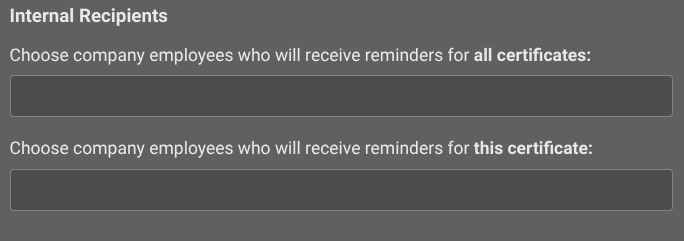
- Internal Recipients: Company Users in your ConstructionOnline account.
- For all (insurance policies, licenses, bonds, or certificates)
- For the specific one being created
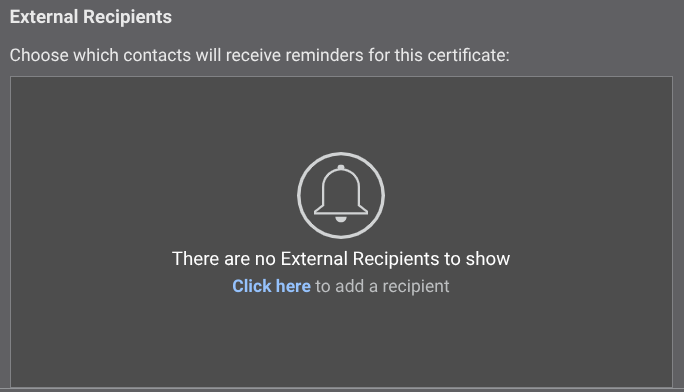
- External Recipients: Any Contacts within your ConstructionOnline account.
- For the specific one being created
🗒️ Note: The automated email reminders being sent to the chosen recipients are those that have been configured within your Certificate Settings. You can modify these reminders by clicking the blue "your reminder settings" text.
- For the specific one being created
- Internal Recipients: Company Users in your ConstructionOnline account.
- Set the reminders by clicking the blue "Save" button.
B. From an Existing (Insurance Policy, License, Bond, or Certificate):
- Access the "Team Management" tab through the Left Sidebar or the Company Selector in the Top Navigation Bar.
- Select the desired option under the "Insurance & Certificates" section.
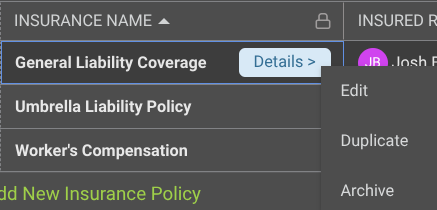
- Hover over the desired one within the list and either press the blue "Details >" button or right-click and select "Edit."
- Follow Steps 2-4 from the section above.
ADDITIONAL INFORMATION
- Subscription Level: ConstructionOnline's OnGuard™ Insurance Tracking feature offers different levels of coverage based on the subscription tier:
- Team subscriptions include tracking for insurance policies.
- Business and Enterprise subscriptions include tracking for insurance policies, licenses, bonds, and certificates.
- For all other ConstructionOnline plans, the full Insurance Tracking feature (including policies, licenses, bonds, and certificates) is available as a Per-Company Add-On.
- Permissions: Admin Users and Company Users with "Can Create, Edit, & Delete" permissions for Certificate Tracking can set reminders for Insurance & Certificates.
- CO™ Mobile App: Currently, the OnGuard Insurance Tracking feature is exclusively available through browser access to ConstructionOnline.
HAVE MORE QUESTIONS?
- If you need additional assistance, chat with a ConstructionOnline Specialist by clicking the orange Chat icon in the bottom left corner or visit the UDA Support Page for more options.