
BACKGROUND
Accurate and timely documentation is critical for keeping construction projects on track, maintaining accountability, and meeting safety and regulatory standards. Custom logs enable teams to capture the information that matters most to their workflows—whether site inspections, detailed equipment checks, or daily progress updates.
With a flexible structure that can include sections, subsections, and pre-filled prompts, ConstructionOnline's custom logs help teams streamline communication, reduce errors, and track key metrics consistently. This customization ensures every project collects the right data in the right format, enabling companies to make informed decisions and maintain a reliable record of activities throughout the project lifecycle.
HOW TO CREATE A CUSTOM LOG
- Navigate to the Daily Logging feature.
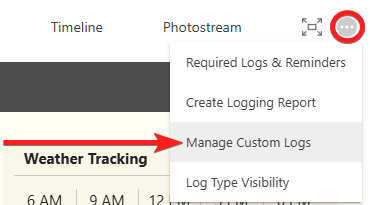
- Locate the gray 3-dot Action Menu in the upper right corner and choose the "Manage Custom Logs" option from the dropdown menu.
- Click the green (+) Add New Custom Log button.
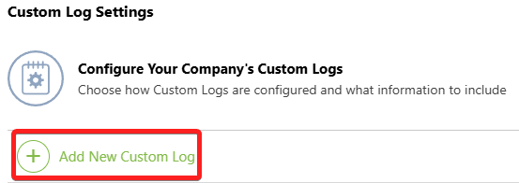
- This will open the "Configure Custom Log" window, where you can enter information about the log, including -
- Custom Log Name: The overall title of the log. This should describe the purpose of the daily log (e.g., "Weekly Site Inspection Log," "Sales Log"). This field is required.
- Section(s): Each custom log can be divided into one or more sections, allowing you to organize related information together.
- Subsection(s): Subsections can be used to further structure the custom log. You can choose to allow team members to include Text, Photos / Attachments, and/or Yes / No / NA responses. You can also enter pre-filled notes, instructions, or prompts that will automatically display in the text field when logging.
🗒️Note: You can continue building out the custom log by selecting the blue "Add New Subsection" or "Add New Section" text until all the necessary information fields are included.
- Subsection(s): Subsections can be used to further structure the custom log. You can choose to allow team members to include Text, Photos / Attachments, and/or Yes / No / NA responses. You can also enter pre-filled notes, instructions, or prompts that will automatically display in the text field when logging.
- Once all desired log information has been included in the log, press the blue "Save" button to finalize the details and create the custom log.
- The new custom log will be added to your Company Account's list of Daily Logs and will be available when creating logs from the "Create Log(s)" extension blade.
ADDITIONAL INFORMATION
- Subscription Level: ConstructionOnline's Advanced Daily Logging is available for companies with active subscriptions at the Business or Enterprise levels.
- Advanced Daily Logging is also available as a Per-Company Add-On for all other subscription plans.
- Permissions: Admin Users can create custom logs.
- CO™ Mobile App: Custom logs must be configured via browser access to ConstructionOnline. Once created, these custom logs can be used to create entries directly within the mobile app.
HAVE MORE QUESTIONS?
- Frequently asked questions (FAQ) regarding Daily Logs can be found in the FAQ: Daily Logs article.
- If you need additional assistance, chat with a ConstructionOnline Specialist by clicking the orange Chat icon in the bottom left corner or visit the UDA Support Page for more options.