
BACKGROUND
Coordinating the bid process across multiple trades often involves managing a large number of Bid Packages at once. Each Bid Package represents a specific scope of work and includes key details such as document release dates, site visits, RFI deadlines, submission deadlines, and bidder contacts. As opportunities develop or project requirements shift, teams may need to update these details across several Bid Packages simultaneously to keep the bidding process aligned with current timelines.
Updating each Bid Package individually can become time-consuming. Bulk edit allows teams to update shared fields across multiple Bid Packages in a few clicks, helping keep schedules, communication details, and bidding requirements consistent.
Similarly, removing outdated or unnecessary Bid Packages helps maintain a clean and organized Bid Tracking environment. When scopes change or opportunities close, bulk deletion provides a quick way to remove unneeded entries while keeping bidding records accurate and up to date.
THINGS TO CONSIDER
- Bid Packages can be accessed at both the Company and Project/Opportunity levels:
- Company-Level: Displays all Bid Packages across all projects.
- Project/Opportunity-Level: Displays only Bid Packages associated with the selected Project or Opportunity.
HOW TO BULK EDIT/DELETE BID PACKAGES
- From within your "Bid Packages" list, Check the boxes next to the desired packages that you would like to edit/delete.
- If you wish to edit/delete all, check the top box in the column header to "Select All."
- Once the desired Bid Packages are selected, click one of the two buttons that appear -
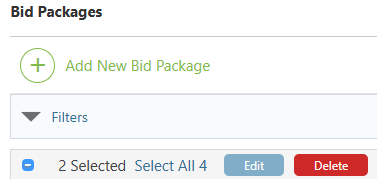
- Edit: Select which field to modify for each of the selected Bid Packages from the dropdown menu.
- Color: Choose a color to visually distinguish the Bid Packages within the "Bid Packages" List.
- Tags: Assign predefined keywords or labels to the Bid Packages.
- Traffic: Select a progress indicator color for the Bid Packages.
- Bid Docs Release Date: Specify the date when bid documents will be shared with Bidders.
- Site Visit: Schedule a date and time for a pre-bid site walk.
- Deadline for RFIs: Set the final date Bidders may submit Requests for Information.
- Addendum Deadline: Enter the latest date addenda can be issued to Bidders.
- Anticipated Award Date: Indicate the target date for selecting and awarding bids.
- Bid Submission Deadline: Provide the date and time by which all bids must be submitted.
- Primary Bidding Contact: Select the Contact(s) responsible for managing Bidder communications.
- Union: Identify labor classification
- Non Union: Identify labor classification
- Prevailing Wages: Indicate whether prevailing wage requirements apply.
- Delete: Delete the selected Bid Packages
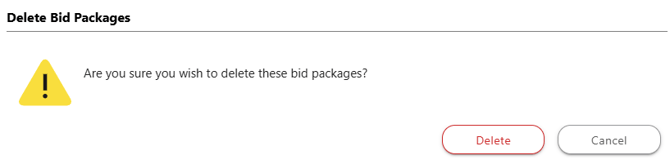
- ConstructionOnline will require double-verification to complete the Bid Package deletions. Confirm your decision to delete the Bid Packages by clicking the red "Delete" button.
- ConstructionOnline will flash a message at the bottom-right corner of your screen confirming successful deletion. The blue "Undo" text is the only opportunity to revert the action.

- ConstructionOnline will flash a message at the bottom-right corner of your screen confirming successful deletion. The blue "Undo" text is the only opportunity to revert the action.
- ConstructionOnline will require double-verification to complete the Bid Package deletions. Confirm your decision to delete the Bid Packages by clicking the red "Delete" button.
- Edit: Select which field to modify for each of the selected Bid Packages from the dropdown menu.
ADDITIONAL INFORMATION
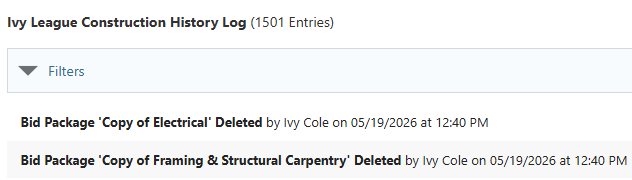
- You can see information regarding this activity logged in the Company History Log, where ConstructionOnline records that the Bid Package was edited or deleted, the user who performed the action, and the date and time of those actions.
- Subscription Level: Bid Tracking is available for ConstructionOnline accounts with active subscriptions at the Residential Business, Commercial Team and Business, Multi-Family Team and Business, and Enterprise levels.
- The Bid Tracking feature is also available as a Per-Company Add-On for all other plans.
- Permissions: Admin Users and Company Users with "Can Create, Edit, and Delete" permissions for Bid Tracking can bulk edit/delete Bid Packages.
- CO™ Mobile App: The Bid Tracking feature is currently available exclusively via browser access to ConstructionOnline.
HAVE MORE QUESTIONS?
- Frequently asked questions (FAQ) about Bid Tracking can be found in the article FAQ: Bid Tracking.
- If you need additional assistance, chat with a ConstructionOnline Specialist by clicking the orange Chat icon in the bottom left corner or visit the UDA Support Page for more options.