
BACKGROUND
The lifecycle of projects and the validity of credentials are often finite, yet the need to retain associated documentation extends far beyond their active period. Even after a project's completion or an insurance policy's expiration, construction companies frequently face a persistent need to access historical records of insurance policies, licenses, bonds, and certifications. This is crucial for various reasons, including auditing purposes, demonstrating past compliance, defending against future claims or disputes, and providing a comprehensive record for legal or financial review. Permanently deleting such information can create significant liabilities and hinder a company's ability to respond to future inquiries effectively.
Recognizing this critical need for data retention balanced with efficient record management, ConstructionOnline offers an invaluable "archiving" feature. Archiving allows companies to safely store outdated or inactive credentials without permanently deleting them. This not only declutters active lists, providing a clearer and more organized view of current documentation, but also ensures that vital historical data remains accessible for future reference.
BEST PRACTICE RECOMMENDATION
It is a best practice to archive credentials rather than delete them if there is any possibility that the documentation may be needed for future reference. Deletion is an irreversible action that permanently removes the credential from the system and disrupts the continuity of essential project records. To safeguard against accidental data loss, ConstructionOnline requires credentials to be archived before deletion, except when completing the action within the credential's extension blade.
⚠️ Important: Archiving a credential sets it to "Inactive," inhibits it from being edited, and prevents reminders from being sent.
HOW TO ARCHIVE INSURANCE & CERTIFICATES
- Access the "Team Management" tab through the Left Sidebar or the Company Selector in the Top Navigation Bar.
- Select the desired option (Insurance, Licenses, Bonds, or Certifications) under the "Insurance & Certificates" section.
- Locate the desired credential you wish to archive.
- Right-click on the credential and select the "Archive" option.
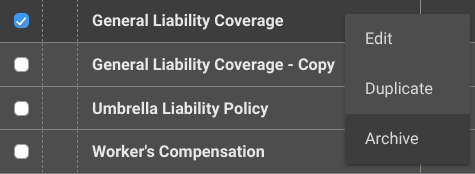
- Once archived, it will be grayed out within the list view.
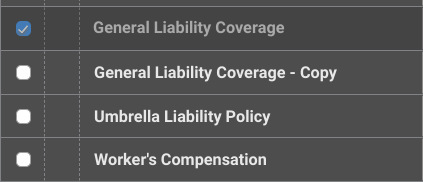
- Once archived, it will be grayed out within the list view.
➡️ Pro Tip: Quickly declutter your list view by filtering for "Not Archived." This will hide all Archived credentials from the list.
RECOVERING AN ARCHIVED INSURANCE & CERTIFICATE
An archived insurance & certificate can be unarchived at any point by right-clicking on the credential again and selecting the "Unarchive" option.
- However - unarchiving a credential does not automatically change its status; it will remain "Inactive" until manually changed.
ADDITIONAL INFORMATION
- Subscription Level: ConstructionOnline's OnGuard™ Insurance Tracking feature offers different levels of coverage based on the subscription tier:
- Team subscriptions include tracking for insurance policies.
- Business and Enterprise subscriptions include tracking for insurance policies, licenses, bonds, and certificates.
- For all other ConstructionOnline plans, the full Insurance Tracking feature (including policies, licenses, bonds, and certificates) is available as a Per-Company Add-On.
- Permissions: Admin Users and Company Users with "Can Create, Edit, & Delete" permissions for Certificate Tracking can archive Insurance & Certificates.
- CO™ Mobile App: Currently, the OnGuard Insurance Tracking feature is exclusively available through browser access to ConstructionOnline.
HAVE MORE QUESTIONS?
- If you need additional assistance, chat with a ConstructionOnline Specialist by clicking the orange Chat icon in the bottom left corner or visit the UDA Support Page for more options.