
BACKGROUND
Connecting clients and team members to your project is essential for successful communication throughout the construction process. When a project's status is set to Live in ConstructionOnline, project invitation emails are automatically sent to the ClientLink and TeamLink users associated with the project. If a new copy of the email invitation is needed, simply follow the steps below!
THINGS TO CONSIDER
- Only Live Projects will send out email notifications, Pending Projects do not.
- To check the status of your Project, view this article.
STEPS TO SEND A PROJECT INVITATION TO A CLIENTLINK/TEAMLINK USER
- Navigate to the desired Project via the Left Sidebar.
- Select the Team tab, then locate the desired ClientLink/TeamLink User.
- Right-click on the user's information, then select the option "Contact Details" from the dropdown menu.
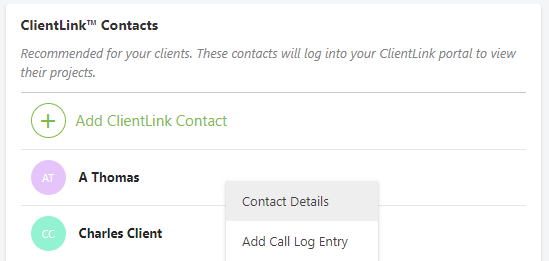
- This will automatically open the Contact Details window to the Projects tab.
- Check the "Send Invite" box OR click the refresh icon
 next to the previous sent date to resend the invite.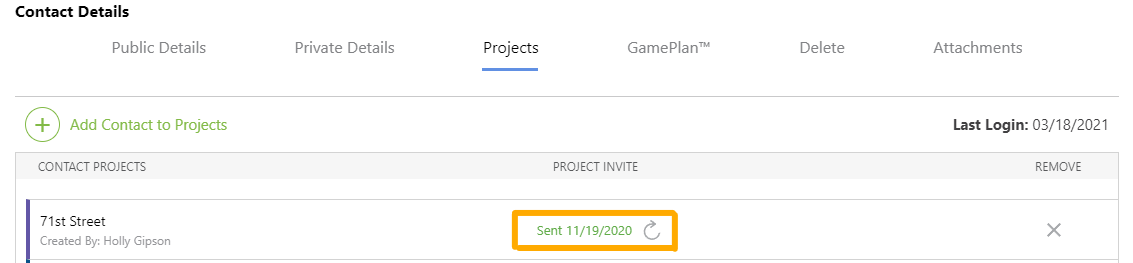
- Click the blue "Save" button.
HAVE MORE QUESTIONS?
- Frequently asked questions (FAQ) regarding the management of ClientLink and TeamLink Users can be found in the FAQ: Managing ClientLink and TeamLink Users article.
- If you need additional assistance, chat with a Specialist by clicking the orange Chat icon located in the bottom left corner or visit the UDA support page for additional options.