
BACKGROUND
ConstructionOnline's TeamLink™ Portal keeps you connected with your assigned construction project and provides you with immediate, up-to-date information on your project tasks & responsibilities at all times. Inside the Portal, you can communicate directly with project managers, view the latest project photos & files, submit RFIs, review change orders, and more. With appropriate Change Order permissions, you can also generate a "Change Order Summary" containing an overview of the change orders you've been assigned to for the project. The print-ready document will also display the adjusted contract price and the added time for your assigned construction project.
PREREQUISITES
- To gain access to your Project in the TeamLink Portal, you must first accept the email initiation sent from your builder.
- Once your account has been activated, you can log in to the TeamLink Portal at any time to access your project information.
STEPS TO PRINT A CHANGE ORDER SUMMARY FROM THE PORTAL
- Within the desired Project, select the Financials tab and choose the Change Orders category.
- Locate the Documents section, then hover over the Change Order Summary icon.
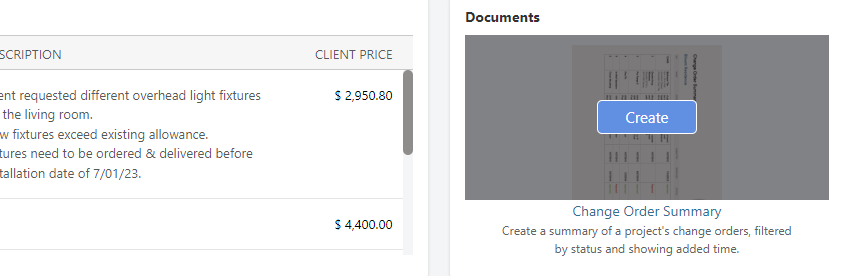
- Click the blue Create button to generate the Change Order Summary.
- The Change Order Summary will open in a new browser tab for you to Share (via email), Save (to your ConstructionOnline Files), Download (as PDF), Edit (in built-in text editor), or Print.
ADDITIONAL INFORMATION
- Access to specific project features may vary based on individual builders' permission settings. If you aren't able to access the Change Orders feature or print a Change Order Summary, contact your builder directly.
- Mobile App: TeamLink Users cannot print Change Order Summaries from the CO™ Mobile App.
HAVE MORE QUESTIONS?
- Frequently asked questions (FAQ) for TeamLink Users can be found in the article FAQ: TeamLink.
- If you need additional assistance, chat with a Specialist by clicking the orange Chat icon located in the bottom left corner or visit the UDA support page for more options.