
OBJECTIVE
To delete a Linked Sheet in Redline Takeoff
BACKGROUND
Manage your jobs efficiently with real-time collaboration based on the most up-to-date information available. Give everyone on your team - from foremen to architects to subs - centralized project plans, tasks, documents and more. Redline™ Planroom gives you the tools you need to connect office and field, so you can build better, faster and smarter.
THINGS TO CONSIDER
- Company users must have a license to access Redline Takeoff.
- Review the Redline Sheet Requirements to ensure your plans are scanned correctly.
STEPS TO DELETE A LINKED SHEET
- Navigate to the desired project via the Left Sidebar
- Choose the Takeoff tab
- Click on the desired Sheet
- The Sheet will open in a new tab
- Select the Callout you wish to delete

- This will open the Callout Details on the right sidebar
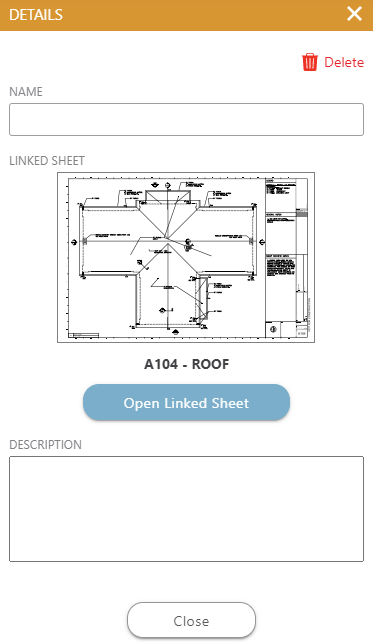
- Click Delete in the top right corner
- The Callout will delete
HAVE MORE QUESTIONS?
- Frequently asked questions (FAQs) about Redline Takeoff can be found in the article FAQ: Redline Takeoff.
- If you need additional assistance, chat with a Specialist by clicking the orange Chat icon located in the bottom left corner or visit the UDA support page for additional options.