![CO_logo_square.svg]](https://help.constructiononline.com/hubfs/CO_logo_square.svg)
OBJECTIVE
To set Predecessors in a Schedule in ConstructionOnline.
BACKGROUND
Schedule tasks can be ordered using Predecessors. Predecessor relationships will automatically update the schedule any time a predecessor task is changed or updated. For example, if a predecessor task is delayed, any following tasks linked to that predecessor will automatically shift to later dates to reflect the delay.
THINGS TO CONSIDER
- A Schedule Task can have multiple Predecessors
- A Schedule Group cannot be set as a Predecessor
- A Predecessor must have an end date before the linked Task’s start date
STEPS TO SET PREDECESSORS IN A SCHEDULE
- Navigate to the desired Project via the Left Sidebar
- Select the Calendars & Schedules tab
- Choose the Scheduling category
- Locate the Task you wish to enter a Predecessor for
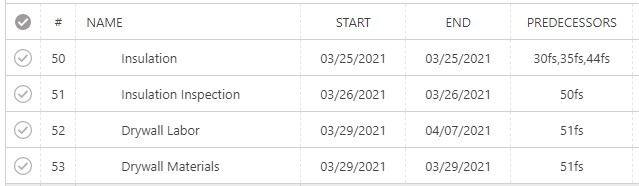
- Enter the Predecessor's Task Number in the Predecessors column
- Changes are automatically saved
- Note: The Predecessor column will automatically add “fs” after the Task Number – this means Finish-Start, and that the preceding task must be finished before the second can start.
HAVE MORE QUESTIONS?
- Frequently asked questions (FAQ) regarding OnPlan Scheduling can be found in the FAQ: Scheduling article.
- If you need additional assistance, chat with a Specialist by clicking the orange Chat icon located in the bottom left corner or visit the UDA support page for additional options.