![CO_logo_square.svg]](https://help.constructiononline.com/hubfs/CO_logo_square.svg)
OBJECTIVE
To set Observed Holidays (Non-Workdays) in a Project Schedule.
BACKGROUND
ConstructionOnline’s Scheduling automatically calculates and shifts project tasks to account for observed holidays. For example, if a task takes two days to complete, but a holiday occurs between the start and end dates, the schedule will account for the holiday and adjust the task start and end dates accordingly.
THINGS TO CONSIDER
- User must have correct permissions to create or edit schedules
- A Project Schedule must exist to set observed holidays
- Available Holidays are based on the selected Country in the Schedule Settings.
- The default holiday calendar is the calendar for the country set on the Company administrator’s settings page.
- Observed holidays will apply on a per-schedule basis, meaning holidays should be set for each project
STEPS TO SET OBSERVED HOLIDAYS IN A SCHEDULE
- Navigate to the desired Project via the Left Sidebar
- Select the Calendars & Schedules tab
- Choose the Scheduling category
- Click the Toolbar icon at the top right of the Schedule Gantt Progress pane

- In the Tools tab, click Set Workdays
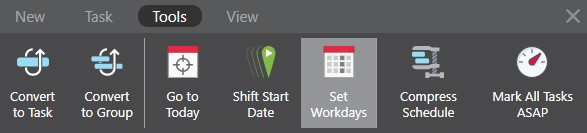
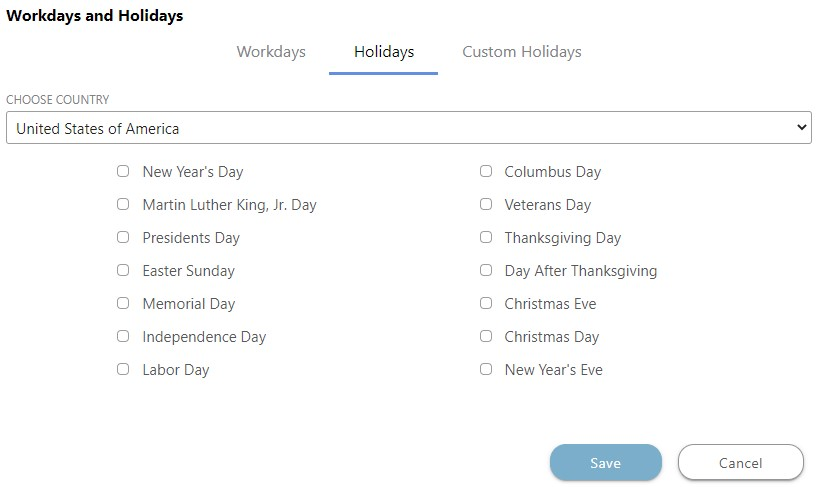
- This will open the Workdays and Holidays window
- Select the Holidays tab
- Choose the Country then check the observed Holidays
- Click Save
HAVE MORE QUESTIONS?
- Frequently asked questions (FAQ) regarding OnPlan Scheduling can be found in the FAQ: Scheduling article.
- If you need additional assistance, chat with a Specialist by clicking the orange Chat icon located in the bottom left corner or visit the UDA support page for additional options.