![CO_logo_square.svg]](https://help.constructiononline.com/hubfs/CO_logo_square.svg)
OBJECTIVE
To set a reminder for a task in a ConstructionOnline schedule
BACKGROUND
ConstructionOnline offers the world's fastest online Scheduling, providing your team with a powerful suite of tools to accurately and efficiently plan your Project's timeline, as well as maintain that accuracy throughout the duration of the Project. Scheduling is a live feature and updates as changes are made, ensuring your project team is seeing the most up to date information.
THINGS TO CONSIDER
- A Resource must be assigned to a Schedule Task for them to receive Reminders.
STEPS TO SET A REMINDER FOR A SCHEDULE TASK
A. Double-Click on the Task:
- Navigate to the desired Project via the Left Sidebar
- Select the Calendars & Schedules tab
- Choose the Scheduling category
- Double-click on the Schedule Task you wish to edit
- This will open the Task Details window
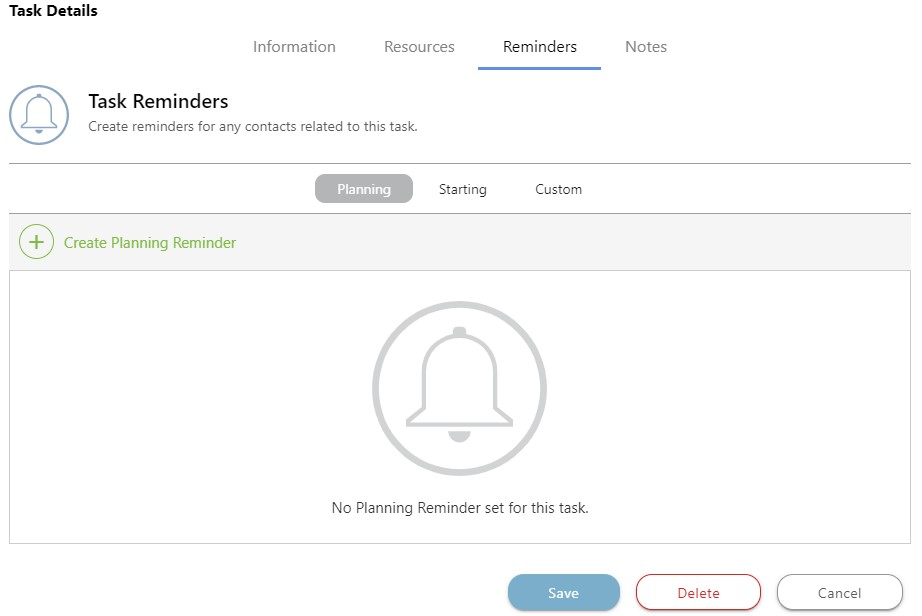
- Select the Reminders tab

- Choose either the Planning, Starting, or Custom Reminders tab
- Click the green +Create Reminder button
- Select the amount of Calendar Days before the event and Time to send the Reminder
- Enter an optional note by clicking into the text block
- Click Save
B. Via the Floating Toolbar:
- Navigate to the desired Project via the Left Sidebar
- Select the Calendars & Schedules tab
- Choose the Scheduling category
- Highlight the Task you wish to edit
- Click the Toolbar icon at the top right of the Schedule Gantt Progress pane

- In the Task tab, select Reminders
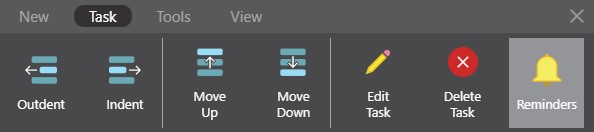
- This will open the Reminders tab in the Task Details window
- Choose either the Planning, Starting, or Custom Reminders tab
- Click the green +Create Reminder button
- Select the amount of Calendar Days before the event and Time to send the Reminder
- Enter an optional note by clicking into the text block
- Click Save
HAVE MORE QUESTIONS?
- Frequently asked questions (FAQ) regarding OnPlan Scheduling can be found in the FAQ: Scheduling article.
- If you need additional assistance, chat with a Specialist by clicking the orange Chat icon located in the bottom left corner or visit the UDA support page for additional options.