![CO_logo_square.svg]](https://help.constructiononline.com/hubfs/CO_logo_square.svg)
OBJECTIVE
To export a Schedule from ConstructionOnline™ in .XML format
BACKGROUND
ConstructionOnline™ offers the world's fastest online Scheduling, providing construction teams with powerful scheduling tools to accurately and efficiently plan & manage construction project timelines - from initial project start through the entire duration of the job.
Dedicated to providing construction pros with flexible solutions for construction project management, ConstructionOnline™ makes it easy to transfer, manage, and update data with direct import/export options available for .XML files, compatible with MS Project.
THINGS TO CONSIDER
- Import/Export options for ConstructionOnline™ Scheduling are reserved exclusively for Company Employees and are not available for ClientLink™ or TeamLink™ Users.
- ConstructionOnline™ Company Employees must have Scheduling Permissions of "Create, Edit, & Delete" to access Import/Export options.
- Schedule files from ConstructionOnline™ can only be exported for MS Project in the .XML file format.
- ConstructionOnline™ Schedules can also be exported to Google Calendars and Microsoft 365 Outlook Calendars.
STEPS TO EXPORT A SCHEDULE IN .XML FORMAT
- Navigate to the desired Project via the Left Sidebar
- Select the Calendars & Schedules tab
- Choose the Scheduling category
- Click the gray 3-Dot Action Menu at the top right of the Schedule Gantt Progress pane

- Hover over Export Schedule, then select Export Microsoft® Project File
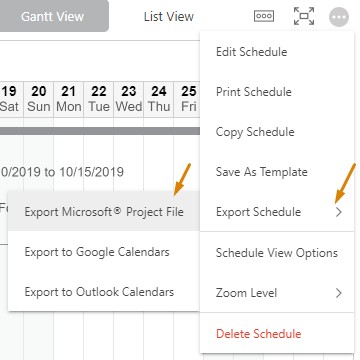
- The file will be exported in .XML format and saved as a download according to the user's default browser download settings. The exported file's name will be pulled from the Schedule Name field in ConstructionOnline™.
HAVE MORE QUESTIONS?
- Frequently asked questions (FAQ) regarding OnPlan Scheduling can be found in the FAQ: Scheduling article.
- If you need additional assistance, chat with a Specialist by clicking the orange Chat icon located in the bottom left corner or visit the UDA support page for additional options.