
OBJECTIVE
To create a Template from a Schedule to use in future Projects.
BACKGROUND
For users who have several projects that encompass a similar scope of work, it is often easier to use a schedule template instead of creating a new schedule for each project. ConstructionOnline allows users to do just that, in turn saving them valuable time.
THINGS TO CONSIDER
- While a schedule template duplicates the schedule tasks, start and end dates will have to be edited for each project the template is used for.
STEPS TO CREATE A TEMPLATE FROM A SCHEDULE
A. Via the 3-Dot Action Menu:
- Navigate to the desired Project via the Left Sidebar
- Select the Calendars & Schedules tab
- Choose the Scheduling category
- Click the gray 3-Dot Action Menu at the top right of the Schedule Gantt Progress pane

- Select Save As Template
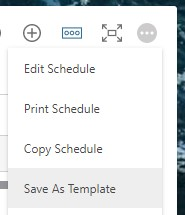
- This will open the Create Template from this Schedule window
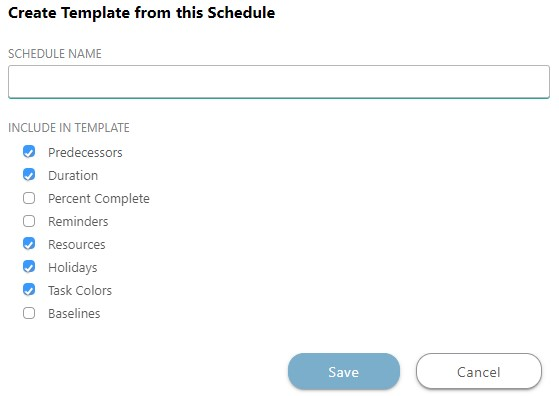
- Name the Schedule Template and choose what to include in the Template
- Click Save
B. Via the Floating Toolbar:
- Navigate to the desired Project via the Left Sidebar
- Select the Calendars & Schedules tab
- Choose the Scheduling category
- Click the Toolbar icon at the top right of the Schedule Gantt Progress pane

- In the New tab, select Create Template
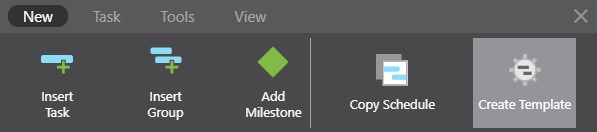
- This will open the Create Template from this Schedule window
- Name the Schedule Template and choose what to include in the Template
- Click Save
HAVE MORE QUESTIONS?
- Frequently asked questions (FAQ) regarding OnPlan Scheduling can be found in the FAQ: Scheduling article.
- If you need additional assistance, chat with a Specialist by clicking the orange Chat icon located in the bottom left corner or visit the UDA support page for additional options.