
OBJECTIVE
To create a Schedule Summary in ConstructionOnline
BACKGROUND
Create a report showing tasks and statuses within a specific date range with optional filtering by resource by generating a Schedule Summary.
STEPS TO CREATE A SCHEDULE SUMMARY
- Navigate to the desired Project via the Left Sidebar
- Select the Calendars & Schedules tab
- Choose the Schedule Reports category
- Hover over the Schedule Summary & click Create
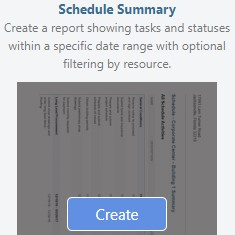
- This will open the Schedule Summary window
- Choose a Resource to filter the report by (optional)
- Select the Date Range and what items to include
- Click Create
- The Summary will open in a new tab
- You can Share, Save, Download, Edit, or Print the Summary from this tab

HAVE MORE QUESTIONS?
- Frequently asked questions (FAQ) regarding OnPlan Scheduling can be found in the FAQ: Scheduling article.
- If you need additional assistance, chat with a Specialist by clicking the orange Chat icon located in the bottom left corner or visit the UDA support page for additional options.