
BACKGROUND
ConstructionOnline allows Company, ClientLink™, and Teamlink™ Users to store and share important files and photos directly from a mobile device. Properly organizing and uploading your files ensures team members have access to the latest documents.
⚠️ Important: ConstructionOnline requires access to your device's camera, photos, and files to upload successfully. You may be prompted to grant this access during the upload process.
HOW TO UPLOAD FILES & PHOTOS TO CONSTRUCTIONONLINE MOBILE
- Open the ConstructionOnline Mobile App on your device.
- Navigate to the Files & Photos section in your Tools dashboard.

- Select the upload location:
- My Files: Accessible by the Company User. Only you can view or manage items stored here.
- Company Files: Accessible and can be managed by Company Users with Files & Photos permissions set to "Can View and Upload" or higher.
- Project Files: Accessible and can be managed by Company Users with Files & Photos permissions set to "Can View and Upload" or higher.
- Accessible to ClientLink and TeamLink Users when Files and/or Photos permissions are enabled. These users can upload attachments to share with the Project Creator by selecting the "Visible to You" Folder.
- Click the orange (+) button to add Files & Photos.

- Choose the upload method:
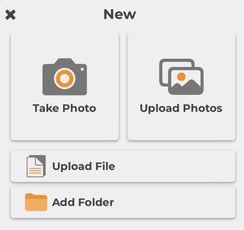
- Take Photo: Use your device's camera to capture and upload a new photo directly to the selected location.
- Upload Photos: Select one or more existing photos from your device to upload.
- Upload File: Choose a document or other file from your device to upload.
- Add Folder: Create a new folder within the selection location to organize Files & Photos.
- Pick the desired attachment(s) you want to upload, then tap the blue "Done" or "Open" text in the top right corner of your screen.
- ConstructionOnline will display a prompt during the upload and confirm when it is complete.
HAVE MORE QUESTIONS?
- If you need additional assistance, chat with a ConstructionOnline Specialist by clicking the orange Chat icon in the bottom left corner or visit the UDA Support Page for more options.