
BACKGROUND
By offering the option to export construction permits to Excel, ConstructionOnline's OnGuard™ Permit Tracking empowers users to share company permit information with external stakeholders. Exporting the company's "Project Permits" List, which maintains a similar table layout, provides a familiar spreadsheet format for those who require access to the information outside the system.
HOW TO EXPORT PERMITS TO EXCEL
- Access the "Company Overview" tab through the Left Sidebar or the Company Selector in the Top Navigation Bar.
- Under the "Company" section, select "Permit Tracking."
- This will open your "Project Permits" List.
- Locate and click on the gray 3-dot Action Menu.

- Select the "Export to Excel" option from the menu to automatically download the "Project Permits" List to your device as an Excel file.
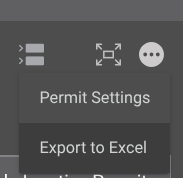
- The download will appear with the file name "Permits.xlsx"
🗒️ Note: When filters are applied to your "Project Permits" List, ConstructionOnline will prompt you to select between the options of "Export Filtered Results" and "Export All Permits."
ADDITIONAL INFORMATION
- Subscription Level: ConstructionOnline's OnGuard Permit Tracking feature is available for companies with current ConstructionOnline subscriptions at Team, Business, and Enterprise levels.
- Permit Tracking is also available as a Per-Company Add-On for all other plans.
- Permissions: Admin Users and Company Users with "Can View" and "Can Create, Edit, & Delete" permissions for Permits can export the "Project Permits" List to Excel.
- CO™ Mobile App: The Permit Tracking feature is available via the mobile app. However, the export option for a Company Account's "Project Permits" List is exclusively available through browser access to ConstructionOnline.
HAVE MORE QUESTIONS?
- If you need additional assistance, chat with a ConstructionOnline Specialist by clicking the orange Chat icon in the bottom left corner or visit the UDA Support Page for more options.